★★★★★
"I used to approve every login prompt without thinking. Proton Login shows me the device, the service, and the session length before I unlock anything. That small pause has made my account feel genuinely mine again."

Learn how the Proton Login app keeps credentials encrypted on your device, verifies each device, and scopes every session to the Proton service you choose.
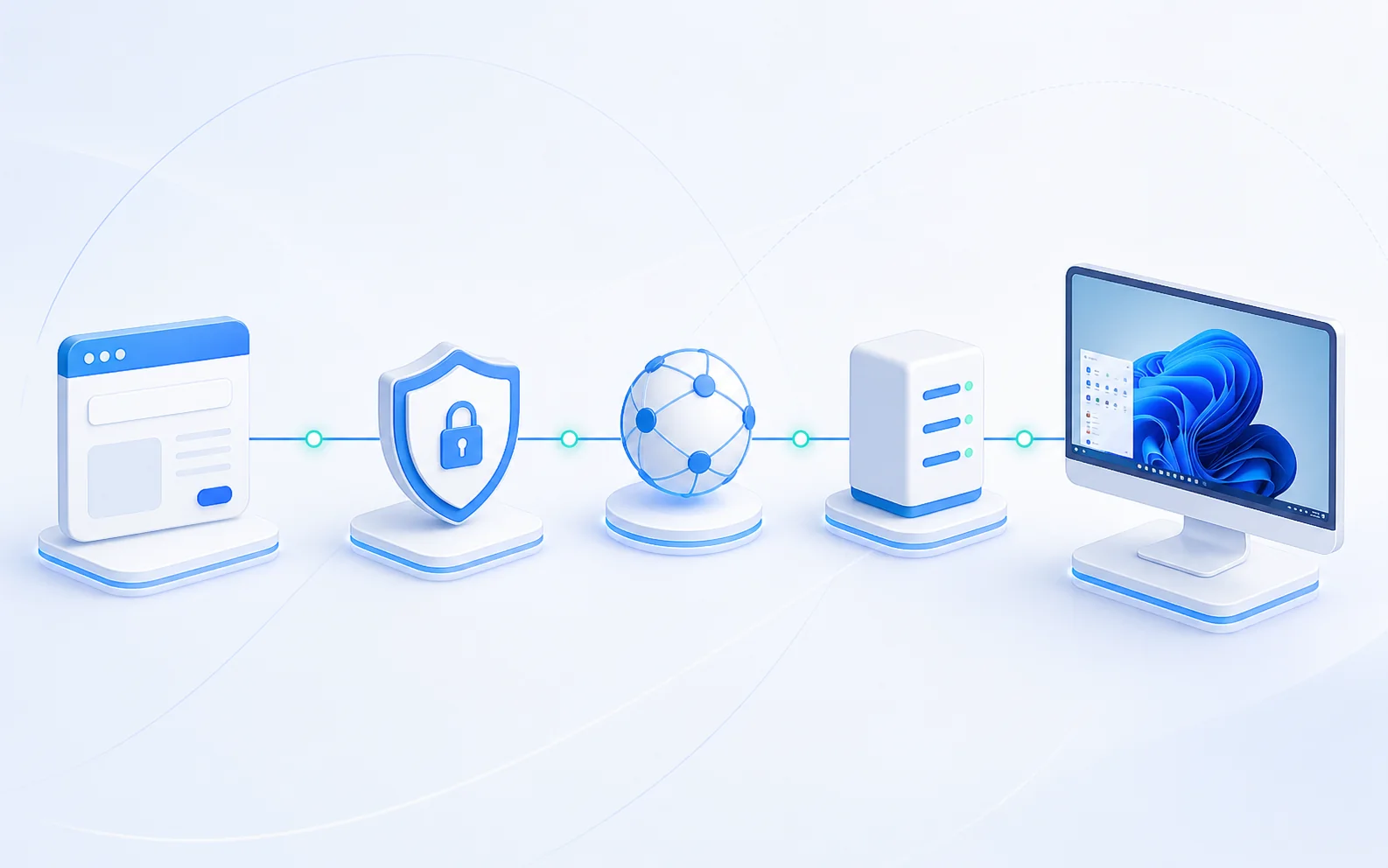
A protected vault, a verified device, and a short-lived session work together. If one layer fails, the others still hold, so a stolen password does not automatically become account access.
Your Proton account ver15 mod17 credentials are sealed with AES-256 encryption and unlocked only on your device. The key never leaves the local vault, and Proton Login cannot read what it cannot decrypt.
Every new browser or desktop installation is checked against your trusted-device list. A one-time code confirms that the person signing in is the same person who owns the account.
After verification, Proton Login issues a short-lived session token for the service you chose. Closing the session revokes the token instead of leaving a permanent key behind.
 Verified
locally, scoped remotely
A Proton account login starts when you open the Proton Login app and choose the service you want: Mail, Drive, Calendar, VPN, or Pass. The app checks that the request comes from a recognized device, then asks for your master password or an approved biometric unlock.
The password is verified locally against the encrypted vault. Only after that check does Proton Login request a scoped session from the identity service. If the account has two-factor authentication enabled, the second factor is confirmed before any token is issued.
That sequence matters because it separates proof of identity from access to data. A stolen session token can be revoked without changing the master password, and a forgotten password can be recovered without exposing the encrypted vault.
Begin on the device you trust and open Proton Login from the shortcut you saved rather than a search result. Check the address bar, the app signature, and the account name shown on the unlock screen. If anything looks unfamiliar, stop and verify before typing a password.
When you complete a Proton log in on a shared computer, choose the temporary-session option. The app keeps the vault locked after you leave, clears clipboard history, and revokes the token when the browser closes. On a personal device, enable biometric unlock so the master password is not typed in public.
Finish every session with an explicit sign-out. Closing a tab is not the same as ending a session. Proton Login shows which services are still active and offers a one-click revoke for each one, so nothing stays open by accident.
Open the app or bookmark you saved, not a link from a message.
Use a scoped session for one service instead of a broad account token.
Revoke the session and confirm the device list before you walk away.
Most people already have a browser password manager or a built-in keychain. The table below shows where a dedicated Proton Login workflow makes a measurable difference.
| Decision point | Proton Login | Browser password manager | Generic SSO extension |
|---|---|---|---|
| Credential storage | Encrypted local vault with a device-bound key | Tied to a browser profile and sync account | Usually managed in the vendor cloud |
| Device verification | Explicit trusted-device list with one-time approval | Limited visibility into new devices | Depends on the identity provider |
| Session scope | One short-lived token per service | A session is often shared across the browser | Broad organization-wide token |
| Sign-out control | Revoke one service or every device | Mostly limited to the current browser | Admin-controlled, not user-controlled |
| Recovery | Local recovery kit plus account recovery | Reset through the browser account | Help-desk dependent |
| Best fit | Everyday Proton account access on personal and shared devices | Quick autofill in a single browser | Large organizations with a central identity provider |
Proton Login is designed for people who want explicit control over every sign-in, not just faster autofill.
These fictionalized reviews show how readers use Proton Login in daily life. They are not endorsements from Proton or any service provider.
"I used to approve every login prompt without thinking. Proton Login shows me the device, the service, and the session length before I unlock anything. That small pause has made my account feel genuinely mine again."
"Our small studio shares two editing machines. The temporary-session mode means nobody leaves a live mailbox behind at the end of a shift. The device list alone saved us from a suspicious login attempt."

"The recovery kit gave me a calm path back into my account after a phone replacement. I did not have to guess which backup code was still valid or reset everything in a panic."

proton-login.com is a resource about the Proton Login application. Our goal is to explain how secure access works and how to keep your account protected. We never ask visitors to submit passwords, one-time codes, or recovery keys. The only place to enter credentials is the Proton Login app or the service page you already trust.
Search results for Proton account login are crowded with lookalike pages. A real sign-in flow never begins with a request to paste a password into a chat, an email reply, or a third-party form. If a page asks for more than your username and an approved second factor, close it and open the app directly.
The guides on this site explain the software's behavior, help you diagnose common errors, and suggest safer defaults. They are educational material, not a substitute for official documentation or for your own security policy.
Short answers about the app, its sessions, and the limits of this guide.
Need a fuller walkthrough? Browse the guides
Proton Login is a sign-in companion for Proton accounts. It keeps credentials in an encrypted local vault, verifies trusted devices, and issues short-lived sessions for the Proton services you choose.
The core sign-in and session-control features are free. Advanced options such as family device groups and extended recovery history belong to the paid plan, and every plan can be cancelled at any time.
No. The master password and vault key stay on your device. Proton Login stores only the encrypted metadata needed to sync your trusted-device list, and it cannot decrypt your vault without your local unlock.
A new device has no trust record yet, so the app requests a one-time approval from an existing device or a recovery code. This prevents a stolen password from becoming immediate account access.
Yes, with the temporary-session option. The vault locks when the browser closes, clipboard access is cleared, and the session token is revoked instead of being saved for later.
Open the Devices screen in Proton Login, review the active sessions, and choose "Revoke all". The app ends each token immediately and asks you to approve trusted devices again the next time you sign in.